- by Arklyfe
Can Everyone in Your Home Use the Smart Lights?
- by Arklyfe
AI-generated illustrative household scene based on an Arklyfe product reference; not a photograph of customers or a completed installation.
A shared household buying checklist
Smart lighting should work for the person who set it up and the person who simply wants to turn on the kitchen light. Before choosing switches for one room or a whole home, check three things separately: what people can do at the wall, what their individual app accounts can control, and who can change the system.
A compatible smart switch does not, by itself, decide who gets access. Those decisions also depend on your chosen platform, account permissions and setup. The useful buying question is not just “Does it work with my phone?” It is “Can everyone who needs the lights use them without being given more access than they need?”
Write down who will use each room. A household member may want app and voice control. A visiting parent might only need an obvious wall button. A house sitter may need temporary access, but not permission to change every automation.
For each person, choose a preferred everyday control and a backup. This is a design brief, not a reason to give everyone an administrator account. It also helps you decide where an ordinary, easy-to-understand wall action matters more than an extra app feature.
Try this simple scenario before ordering a whole-house set: someone unfamiliar with the system enters the living room, turns on the main light and turns it off again. Can they do that without your phone, a spoken command or a tutorial? Ask the supplier to demonstrate the exact proposed switch and configuration. A wall button that directly controls a circuit and a button assigned to a scene are not necessarily equivalent.
Platform role names can be misleading if you read them as everyday words.
Apple Home distinguishes Residents from Guests. Apple's current guidance says Residents can access the home's accessories locally, with remote access optional. Guest access is for specified doors, locks and other security-related accessories on a schedule. It is not a general temporary-lighting role. If you want visitors to use the lights, do not assume the Guest option solves that requirement. Review what a Resident invitation would expose before using it instead. Apple guidance on sharing control of your home
Google Home distinguishes Admin and Member access. Admins can manage people and devices. Members have more limited rights, with separate Settings and Activity options. Limited does not necessarily mean “only the kitchen lights”: review the actual devices and permissions the invitation exposes. Google's guidance also says Google Workspace accounts cannot be invited, so check the account type before planning a household setup around a work address. Google Home people and permissions guidance
You do not need to memorise every menu. You do need a demonstration using the account and phone that the second person will actually use. Record the selected role and whether remote control, settings and activity access are enabled.
Two different questions often get combined:
• Can another person use devices in the same home app?
• Can the same device also be controlled through a different compatible platform?
The first concerns household invitations and permissions. The second concerns ecosystem sharing. The Connectivity Standards Alliance describes Matter multi-admin as a way to connect Matter devices to multiple platforms or control points. It does not mean everyone in your family automatically receives access. Connectivity Standards Alliance Matter FAQs
For a household using both Apple and Google, ask which specific device functions are available in each proposed setup. Do not assume a scene, button action or automation configured in one app will appear identically in another. Request a demonstration of the functions you intend to use, rather than relying only on platform logos.
A useful acceptance test is to operate the same light from each intended phone, then from its wall control. Confirm that each app shows the resulting state. Record the device model, controller, app and firmware versions with the result. This is a test to request, not a claim that every combination has already passed.
Nominate who will maintain the home and who simply needs to use it. Prefer each person's own account and an appropriate invitation over sharing one person's login.
Before handover, ask who owns the home configuration, who holds any recovery information and how a second trusted household member can help if the main organiser is unavailable. Do not leave those questions until a phone is lost or replaced.
Also ask how access is removed. Apple warns that removing a person from its Home app may not remove access that person holds in another app. Apple guidance on sharing control of your home Your handover record should therefore list every platform or manufacturer app used for the installation. Review access in each relevant service when circumstances change; do not assume one removal covers everything.
For many short visits, the best experience may be a straightforward wall control rather than another account. Choose clear room names and explain only the actions a visitor needs.
For example, your brief might say: “The main living-room light must have an obvious wall action. Optional scenes must not be the only way to obtain normal room lighting.” Ask the designer to show how that requirement will be met with the selected hardware and configuration.
Keep a short household guide: the main lighting controls, how to stop an unwanted routine, who to contact for help, and which settings should not be changed casually. This is especially useful when a system spans lighting, curtains and other rooms. Avoid putting passwords or setup codes on a publicly visible instruction card.
Bring these questions to a demonstration or quote discussion:
1. Can everyone perform the basic lighting actions without the organiser's phone?
2. Which app accounts and roles will regular household members need?
3. Can visitors use the room without receiving wider digital access?
4. If we use two ecosystems, which exact functions have been demonstrated in both?
5. Who can edit routines, add devices or remove people?
6. What handover information will we receive, and how do we review or revoke access later?
Use the answers to compare systems, not just the appearance of their wall panels. If an answer depends on a particular controller, software version or additional setup, have that dependency written into the proposed configuration.
Browse the Arklyfe smart-switch range and the StellarTrack Matter Smart Switch product page to identify the model and finish you want to discuss. For a broader project, use the Matter wireless smart-home solution page to prepare your whole-home brief.
Bring a list of the phones and home platforms your household uses, the people who need everyday control, and the rooms where wall operation must remain simple. Ask for the exact proposed configuration and a household-control demonstration before committing to a full-home order. Product compatibility and the functions available to each person must be confirmed for that setup; this article is not a model-specific test report.
Do Smart Light Switches Need a Neutral Wire in Australia?
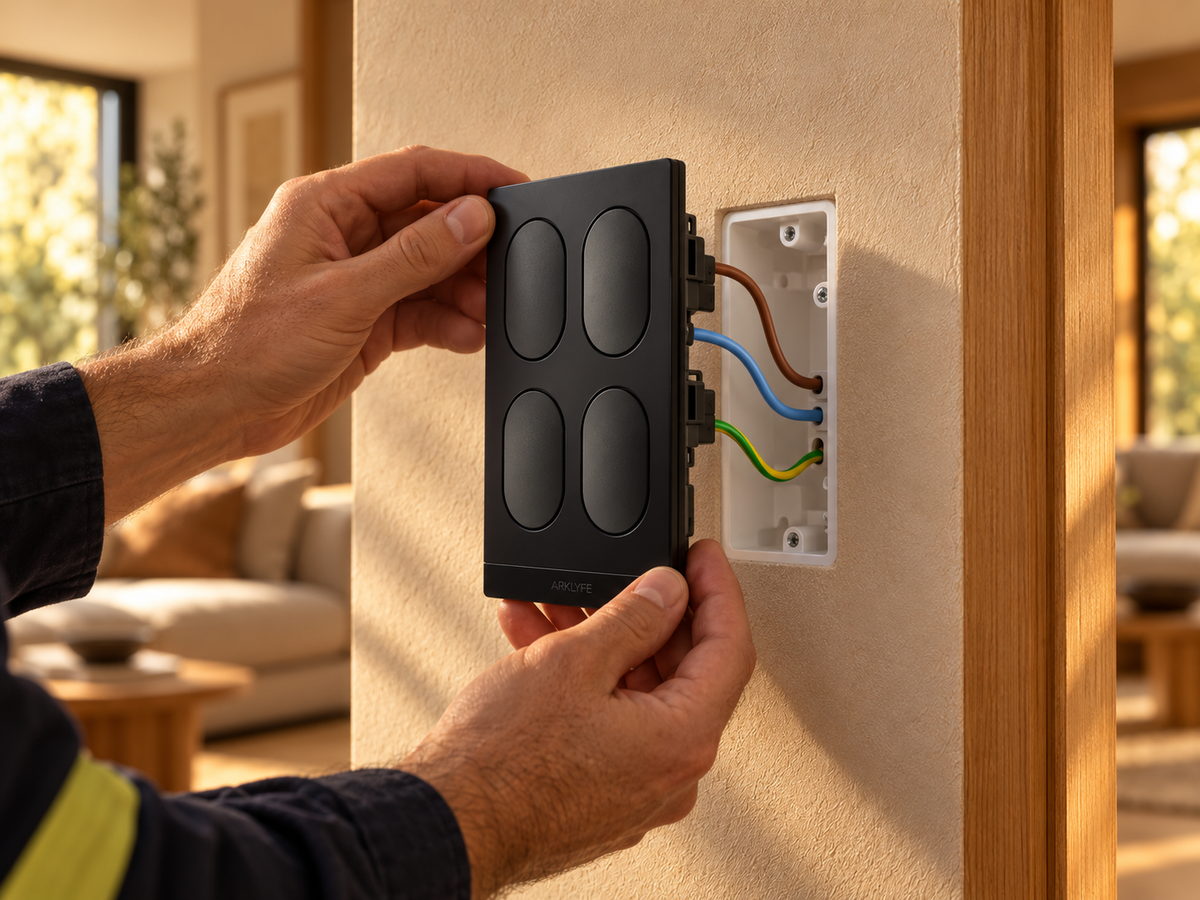
Short answer: most smart switches, including Arklyfe StellarTrack, need a neutral at the switch, which many older Australian homes lack. Options: have an electrician run a neutral, choose a no-neutral switch, or use smart bulbs or a relay at the light.
Can Everyone in Your Home Use the Smart Lights?
Buying smart switches? Check wall controls, household app permissions and shared access so everyone can use the lights without sharing your login.
Can You Use Smart Bulbs with Smart Switches?
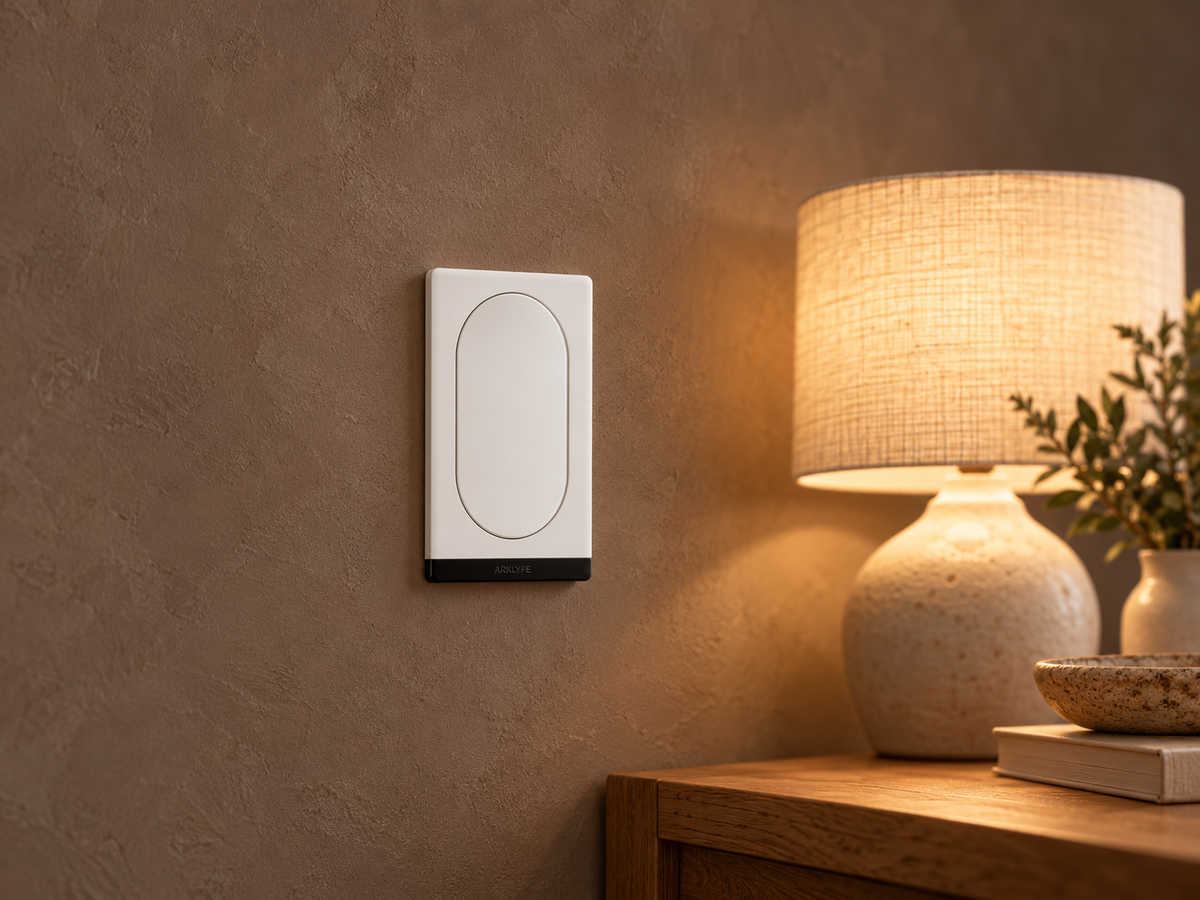
A smart bulb needs power to receive commands. Learn when a smart wall switch helps, when it cuts the bulb off, and what to confirm before buying both.
Share:
Can You Use Smart Bulbs with Smart Switches?
Do Smart Light Switches Need a Neutral Wire in Australia?